Quick Start

Image Link Generator: Create a Shareable Image URL

Use MaiIMG as a free image link generator: upload a focused set of images, get one shareable URL, add a QR code from the same share, and decide when the link should stop working.

One link QR ready Easy to close
01

Keep the set focused

One share can hold up to 25 files, so it works best when the set has one clear purpose.

02

Use one source for link and QR

The direct link and the QR code come from the same share, so you are not managing two separate paths.

03

Set rules before sending

Open limits, expiry rules, and link revoke work better when they are decided before the share goes out.

What this page covers

This guide is for the basic job behind searches like image link generator, image to URL, and create image link: upload a small image set, get one link, decide whether you also need a QR code, and set limits before the share starts moving around.

Best for

Reviews, handoffs, event sets, quick client delivery, and any case where one clear link is easier than many attachments.

Known limit

One share supports up to 25 files, so large libraries should be split into smaller sets.

Real controls

Link, QR code, open limits, expiry settings, access records, and link revocation are all supported in the current product.

Create an image link now

Open the MaiIMG upload tool, add up to 25 image files, and generate one shareable URL with a matching QR code. The same share can also use view limits, expiry, access records, and revoke control.

Open image link generator
  • No app needed for viewers
  • Link and QR from one upload
  • Close the share later

The shortest useful workflow

1. Build one clear set

Group only the files needed for this share. If the set feels too broad, split it by purpose before you upload.

2. Create one entry point

Use the generated link as the main entry. Add the QR code only when people will scan from a physical surface.

3. Set limits in advance

If the share is temporary, decide the open count and expiry before distribution starts.

4. Close the loop

Once the review or delivery is done, revoke the share if it should not stay open.

See the workflow before you share

Tip: the diagrams and images below can be opened in a larger view.

Main path

Upload first, then decide how people will open it

This diagram is helpful because it keeps the order clear. Upload and organize first. Generate the link next. Turn it into a QR code only if the audience will scan it.

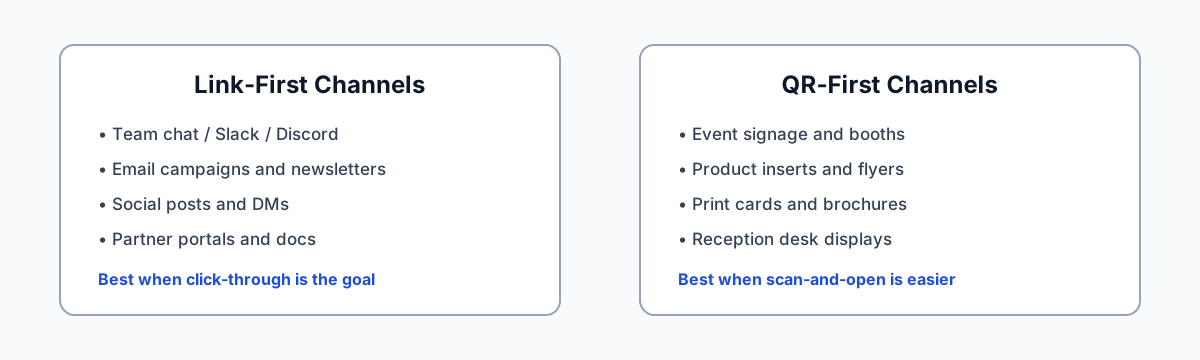
Image sharing workflow diagram
Channel distribution matrix diagram
Channel fit

Link in chat, QR in print, same share underneath

The useful part is not having more formats. The useful part is keeping one share underneath while changing the way people open it.

What the actual share looks like

Start

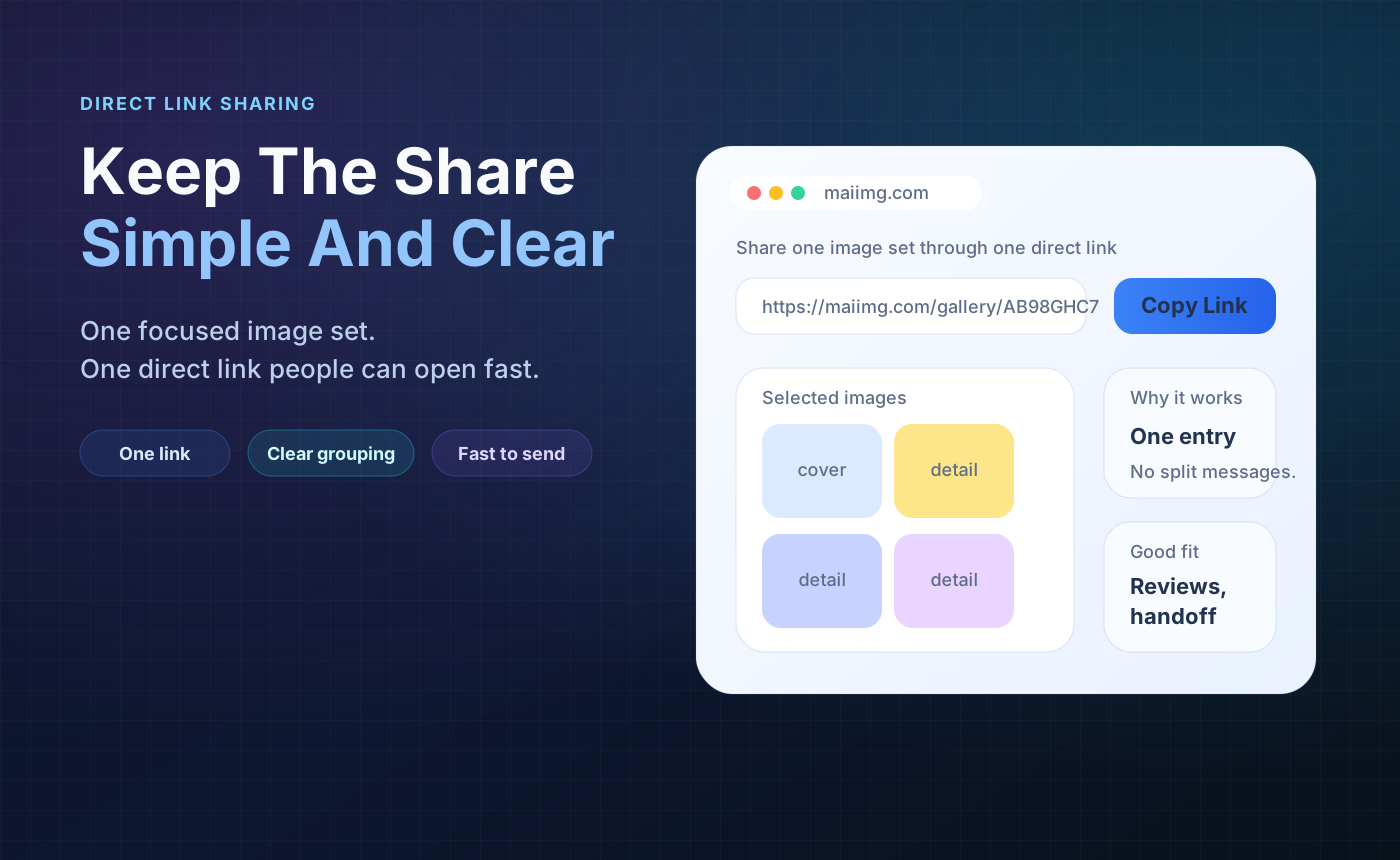
One upload action should lead to one clear share

If the upload is already messy, the distribution step usually gets messier. A small, focused set is easier to explain and easier to control.

Direct image sharing link visual
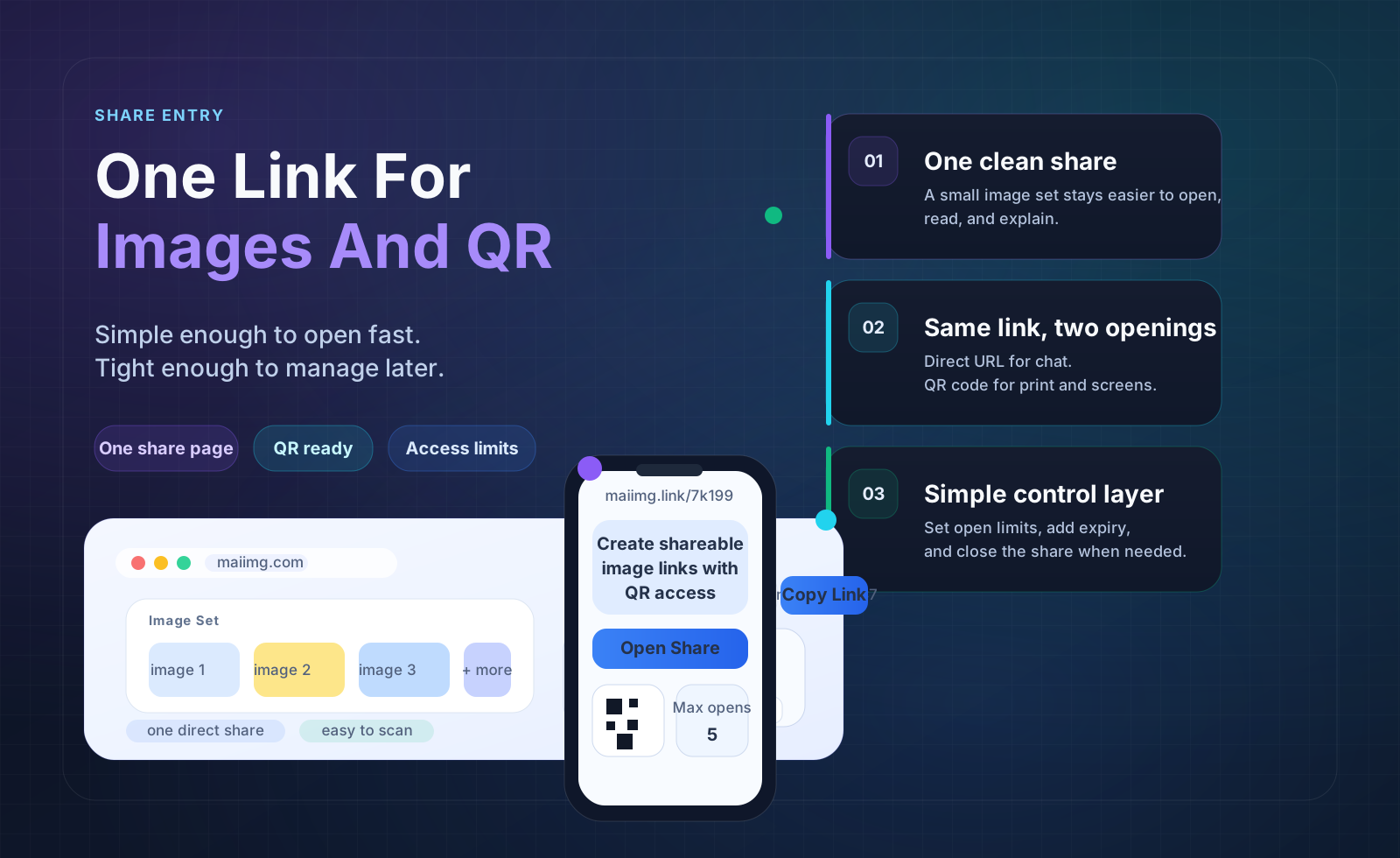
Share entry hero visual
Entry point

The link should feel like one finished entry point

People open faster when the share feels complete. One page, one purpose, one next step.

Rules

Controls matter before the link spreads

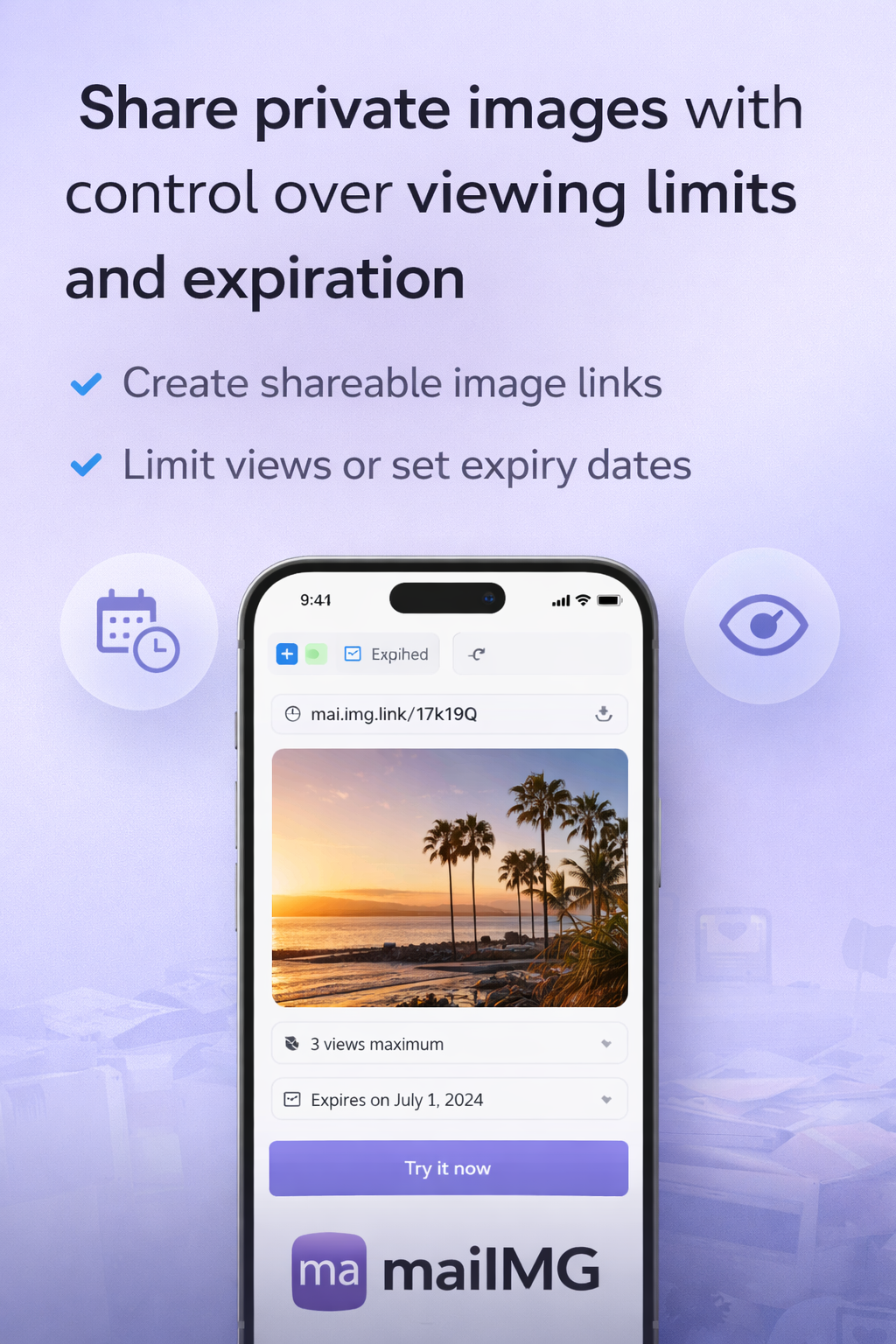
Open limits and expiry are much more useful when they are set before people start forwarding the link.

Open limits and expiry visual

FAQ

Upload the images to MaiIMG, generate one share, then copy the direct URL. The same result also includes a QR code, so people can open the same image set from chat, email, print, or a phone screen.

No. Use the direct link in chat, email, or docs. Use the QR code only when people will scan from print, signage, or a physical display.

Yes. Open limits, expiry, and revoke controls are all part of the current sharing flow.

One MaiIMG share currently supports up to 25 files. For larger albums, split the images into smaller links by event, topic, or audience.

Related reads

Turn images into one shareable URL

Build a small set, create one image link, add a QR code, and decide the limits before the link starts moving around.

Create an image link